
Manage the view on the front of room display
Select  View on the room system. You can toggle between different views for your room display.
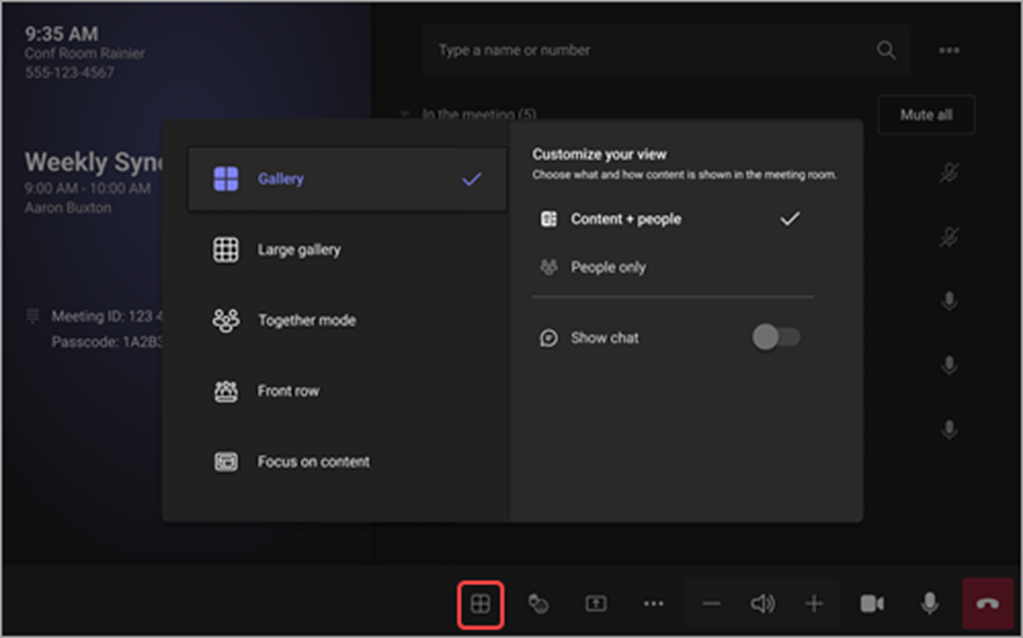
Note: Depending on the type of license assigned to your room account, some functionalities may not be available.
|
View |
Use it to... |
|---|---|
|
Gallery |
Optimize the layout of shared content to make that content as large as possible, while also showing more video participants. |
|
Content + gallery |
When someone shares content like a presentation, Content + gallery optimizes the layout to make that content as large as possible while also showing more video participants. |
|
Content |
Available when content is being shared. This is the view to choose when you'd like to pay close attention to the content without the distraction of seeing people's video feeds. |
|
Large gallery |
View up to 49 video streams at once. Large gallery view is available when at least 9 people have their cameras turned on. |
|
Together mode |
See everyone who has a camera turned on seated together on one virtual background. Together mode view is available when there are at least 4 participants whose cameras are turned on. |
|
Front row |
Enhance hybrid meetings and provide in-room participants with greater context of the meeting. On the front-of-room display, you can see remote attendees at eye level, including meeting experiences like chat and a rostered view of participants with raised hands. |
|
Show chat |
Turn on the toggle next to Chat on Gallery, Large gallery, and Together mode. In-room participants can see the meeting chat sent by remote participants on the front-of-room display. However, a room device cannot send a message. |

