
• Skip to content
  • Skip to navigation
Logo: Rotherham Metropolitan Borough Council
Your Account
  • Menu
Close menu
Close
  • About the Council
  • Business and Economy
  • Children and Families
  • Community and Living
  • Council Tax and Benefits
  • Education and Learning
  • Environment and Waste
  • Health and Social Care
  • Housing
  • Jobs and Careers
  • Leisure and Culture
  • Planning and Development
  • Transport and Streets
  • See all news
  • See all events
  1. Home
  2. About the council
  3. Council publications
  4. Logitech Tap: User Guide for Microsoft Teams Rooms

Logitech Tap: User Guide for Microsoft Teams Rooms

In this section

  1. Introduction
  2. The Touch Screen Controls
  3. Use Outlook to reserve a room equipped with Microsoft Teams Rooms
  4. Use Teams or Outlook to add a Microsoft Teams Room to an existing meeting
  5. Join a scheduled meeting
  6. You are here: Join a scheduled meeting that's not on the console
  7. To Start an Instant Meeting
  8. Share your screen in a Teams Room (outside of a Teams meeting)
  9. Add a participant
  10. Pin a participant
  11. Remove a participant from the meeting
  12. Manage the view on the front of room display
  13. Change meeting settings

Join a scheduled meeting that's not on the console

      1. Join the meeting on your personal device.

      2. When you're choosing your audio and video settings, you'll have the option to add a room and use that room's audio and video equipment. Your personal device may even detect a nearby room using Bluetooth.

If it does, you'll see (suggested) next to Room audio. If the nearby room has already joined the meeting, just select Audio off to join with your audio off and avoid disrupting the meeting.
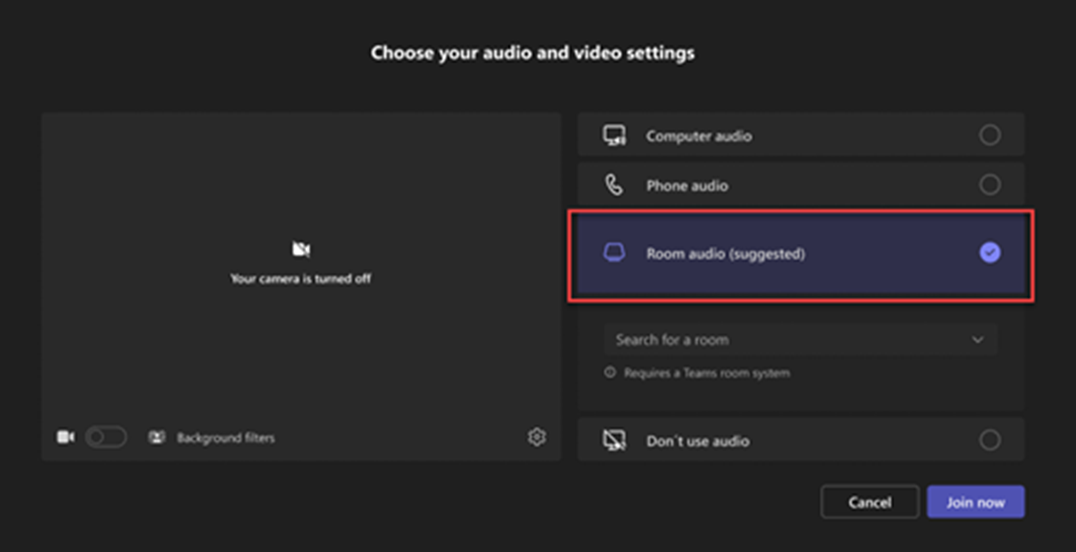
 

Screenshot of room and audio controls

  1. If your device doesn't detect the room nearby, select Room audio and search for a room.
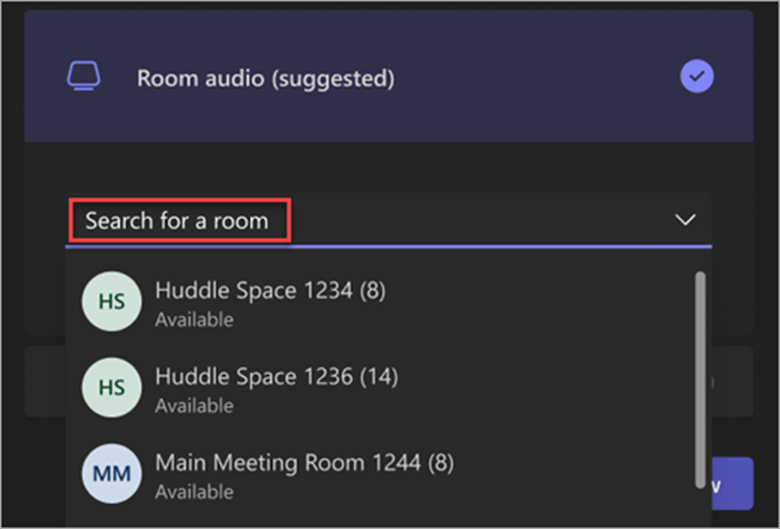
     Screenshot of Search bar for finding rooms
  2. If you've already joined the meeting on your personal device, you can select Show participants Picture of adding participants to team, then go to Invite someone or dial a number and search for the room name. Then, select the room and OK to call it into the meeting.
  3. Then, the room will ring. To join the meeting, select Accept on the room console.

Note: Make sure the audio on your personal device is off before you accept the call on the room console, or you could cause echo.

  • Previous page: Join a scheduled meeting
  • Next page: To Start an Instant Meeting

Stay connected

Sign up for our newsletter
Footer Logo: Rotherham Metropolitan Borough Council
  • About this website
  • Accessibility settings
  • Accessibility statement
  • Privacy
  • Languages
  • Contact Us
  • Location
  • Terms and conditions
  • Facebook logo
  • Twitter logo
  • YouTube logo
  • Instagram logo
  • LinkedIn logo

All content © 2026 Rotherham Metropolitan Borough Council. All Rights Reserved.

Designed and Powered by Jadu.

chatbot launch button image
Left Right
Full Wide Split Narrow
Chatbot avatar image
Hi, I'm Bailey
I'm here to answer your questions.

Hi, I'm Bailey, how can I help you today? You can ask me questions relating to a number of council services.

To start a chat you will need to click 'continue' to confirm you have read and understood our terms and conditions Privacy Policy.

Privacy Statement