
Share your screen in a Teams Room (outside of a Teams meeting)
To share your desktop with in-room participants outside of a Teams meeting, connect your personal device to the appropriate cable connected to the room system. Depending on your room settings, your screen may be shared automatically, or you may have to select Share  on the room system.
>
You can also cast content from your personal device. To learn more, see casting from a mobile device or casting from a desktop.
Share your screen with all meeting participants (during a Teams meeting)
There are several ways to share content with both in-room and Teams meeting participants from a personal device:
- Join the meeting on your personal device and select Share
 , then the item you want to share. Go to Share your screen in a Teams meeting to learn more. >
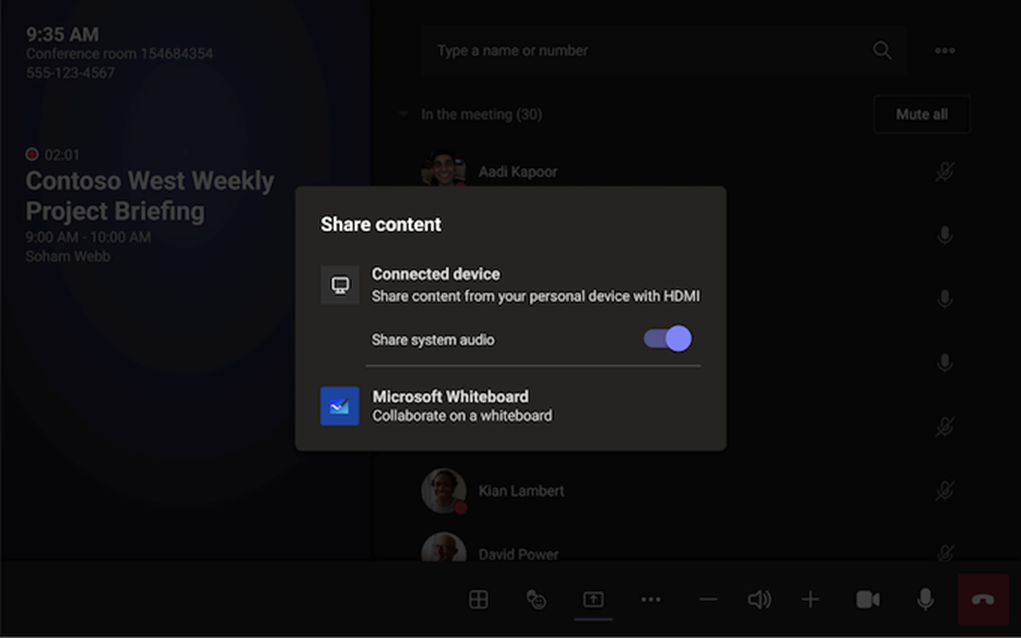
 - Connect your personal device to the cable connected to the room system. Depending on your room settings, your screen may be shared automatically, or you may have to select Share
 > Connected device on the room system. Control when you want to broadcast your device's sound by turning on or off the toggle next to Share system audio. >
 - Cast content from your personal device. Learn more about casting from a mobile device or casting from a desktop.
- If your room has a touch display, you can use Microsoft Whiteboard in your meeting by selecting Share
 > Microsoft Whiteboard on the room system. >
To stop sharing, select Stop sharing on the room system.
Note: Depending on your device settings, you may see different content sharing options.

